Google’s new laptop family puts everyday tasks at the center of its AI pitch. Here’s what has been announced — and what still needs to prove useful beyond a demonstration.
By OTN Editorial | Launch analysis | Sources checked September 23, 2026
You open your laptop to send one email. A little later, you’re juggling windows, hunting for a file, and trying to remember what you meant to write. A computer can offer plenty of tools without making the job feel any simpler.
That is the question worth bringing to Googlebook: not whether it has AI, but whether that AI removes work from your day.
OTN has not tested these devices. This is an analysis of official announcements and demonstrations, not a hands-on review. The everyday scenarios below illustrate possible uses; they are not OTN test results.
What has Google announced?
Google’s September 21 announcement describes five laptops from Acer, ASUS, Dell, HP, and Lenovo, starting at US$899. It identifies Acer as the convertible, lists the ASUS at 2.2 pounds, and gives Lenovo a 15-inch screen.
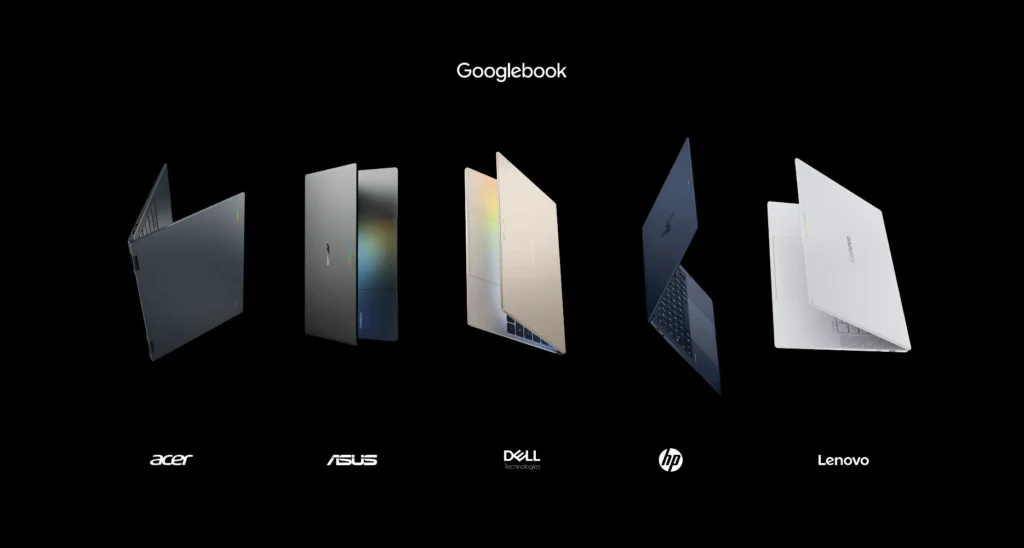
Across the range, Google advertises touchscreens up to 2.8K and memory starting at 16GB, with some configurations reaching 32GB. These are portfolio figures — not specifications shared identically by every model.
US retail availability is scheduled for October 4, followed by selected international markets on October 5. The announced bundle includes 12 months of Google AI Pro with 5TB of cloud storage, according to Google’s hardware announcement.
The practical takeaway: choose a particular laptop and configuration, not just the Googlebook name. A family label cannot tell you whether a keyboard feels comfortable or whether the ports fit your desk setup.
Magic Pointer: help with what you’re looking at
Google describes Magic Pointer as a way to invoke Gemini with a cursor movement and work with selected on-screen content. Its published examples include combining images and turning a training schedule into calendar entries, as set out in Google’s feature announcement.
Imagine helping a friend prepare a band poster. Instead of treating the task as a tour through several tools, you want to explain the result you need using material already in front of you.

For OTN, the interesting possibility is less effort moving between steps. But creating a draft and finishing a job are different things. Someone still has to check the lettering, confirm the details, and decide whether the design works.
Rambler: speaking is not always the same as writing
Google says Rambler turns disorganized speech into structured text and supports switching languages within a sentence (Google’s explanation of Rambler).
Think about an email you could easily explain to a colleague but keep rewriting at your keyboard. You remember one point late, correct another, and change the order halfway through.
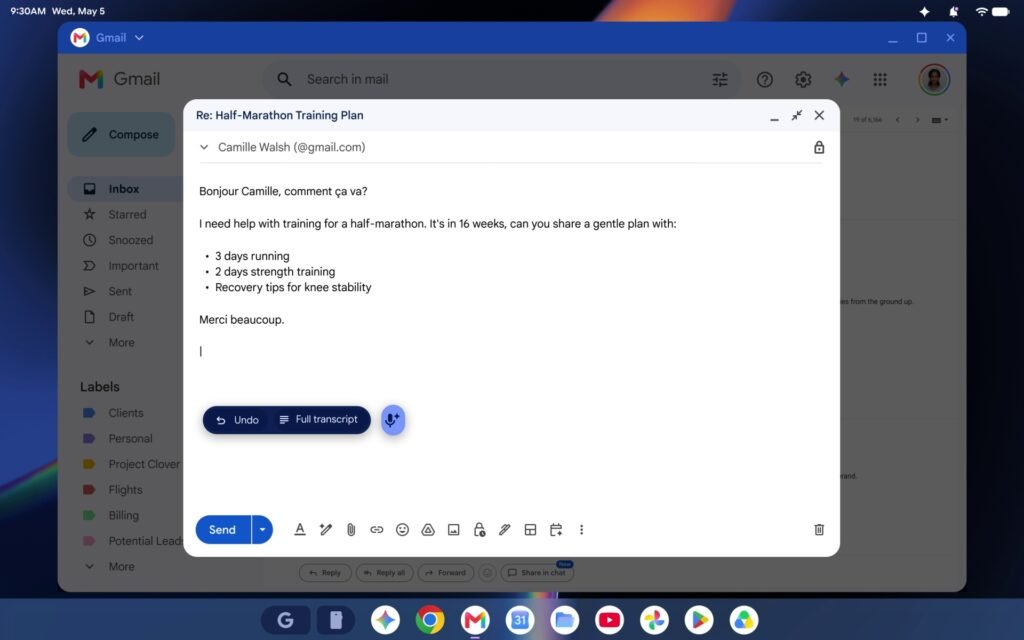
That is a relatable reason to want help with a first draft. It also suggests a useful test: did the organized version preserve what you meant? A cleaner sentence is not an improvement if it changes a date, drops a condition, or makes you sound more certain than you are.
Small tools may be the more useful ones
Create My Widget, according to Google, lets users describe a custom widget without coding; one example is a countdown to a family trip.
A countdown is not a reason to replace a laptop. But it makes the broader idea easier to understand: a personal tool can be modest and still be useful. The question is whether making it takes less effort than the problem it solves.
What to check before buying
Start with your essential applications. Check the exact software and functions you need, including any work or school requirements. Do not assume that opening a document means every feature in your usual workflow is supported.
Next, separate connected use from offline use. If you lose Wi-Fi during a journey, which of your tasks can continue? Which AI features need a connection, a subscription, or particular account permissions? These are verification questions, not shortcomings established by OTN testing.
Privacy deserves the same specificity. Before using personal or work material with an AI feature, check what information it accesses, where processing happens, and which controls apply. Avoid treating a broad AI label as a complete answer.
Finally, compare the full cost of the configuration you would actually buy. For any introductory subscription, read the eligibility, renewal, and cancellation terms. Ask whether the laptop still represents good value without the temporary extras.
OTN’s take: judge the finished task
Googlebook makes an interesting proposition. Our buying advice, however, starts somewhere deliberately ordinary: the screen, keyboard, applications, connections, and cost must fit your routine first.
Then ask whether its AI tools help with something you repeatedly do. A feature used every week may matter more than one spectacular result you never need again.
The most convincing demonstration would not simply produce something impressive. It would help you finish the task you opened the laptop for — with less friction and without leaving you more to correct.
Sources
- Google — Premium materials and striking design set Googlebook apart (hardware, pricing, availability)
- Google — Googlebook’s built-in intelligence (Magic Pointer, Rambler, Create My Widget)
Images in this article are promotional material published by Google.
Editorial transparency: This article was drafted with generative AI under human editorial direction. On Tech Now is responsible for its final review, accuracy and publication.