
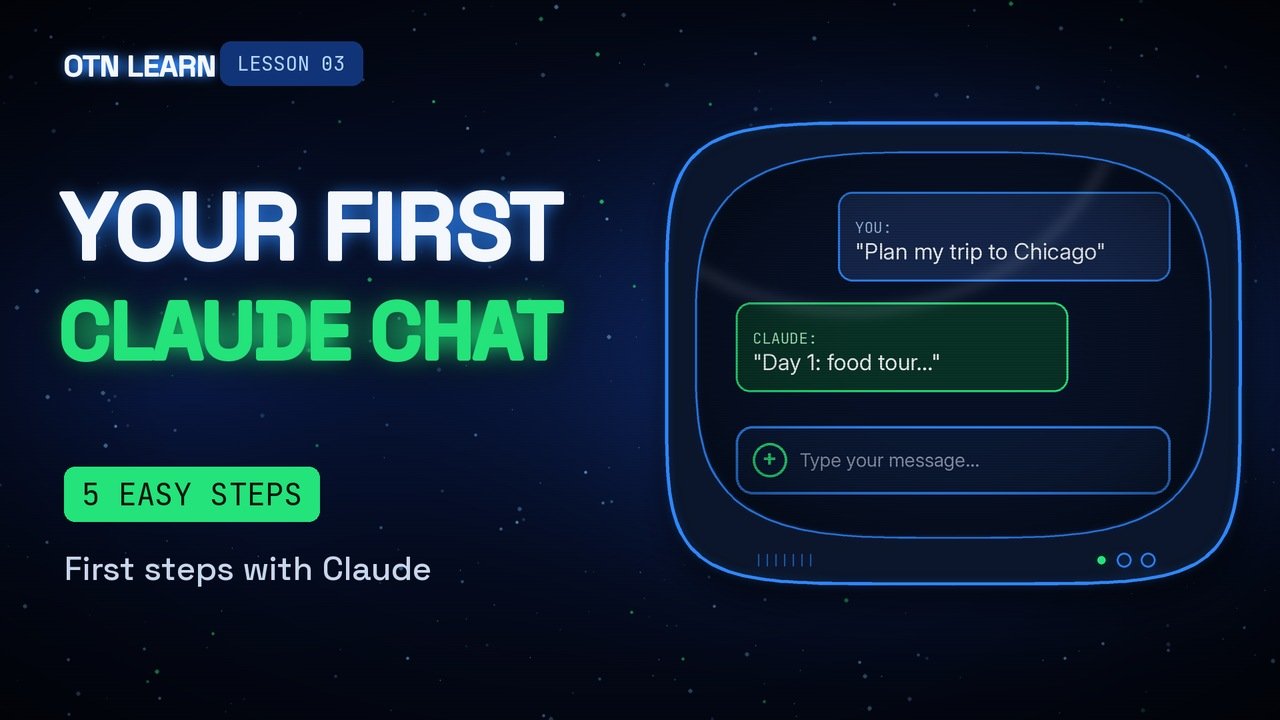
New to Claude? Here is your very first chat, step by step, in plain words.
By Gene B. Geraissati, Founder & Tech Curator | Tutorial
Claude is an AI assistant made by the company Anthropic. You can talk to it like you would to a helpful friend, and it can write, explain, plan, summarize documents and read photos. This is the full written version of OTN Learn lesson 03, with every example from the video: five easy steps, three common mistakes and one golden rule.
Key takeaways
- You can use Claude in your web browser, in a desktop app for Mac and Windows, or in the app on your phone.
- All you need to start is an email address, or a Google or Apple account. There is a free plan.
- Five steps: create your account, meet the screen, ask and then refine, add a file or a photo, and keep your chats tidy.
- The golden rule: one topic, one chat.
What you need
- An account: an email address, or a Google or Apple account.
- A place to use it: a web browser, the desktop app or the phone app. Your chats follow you from one device to another.
- About five minutes. The free plan lets you try Claude before you pay for anything. Paid plans add more usage and extra features, and they change over time, so check claude.ai for the current options.

Step 1: Create your free account
- Go to claude.ai, or open the Claude app.
- Choose Sign up.
- Use your email, or continue with Google or Apple.
- Follow the short welcome steps, and you’re in.
Step 2: Meet the screen
You only need to know three places to begin:
- The message box at the bottom, where you type.
- The plus (+) button in the message box, to add files and photos.
- The sidebar on the left, with your past chats and a button to start a new chat.
Step 3: Ask, then refine
Write the way you would talk to a helpful friend. Your first message doesn’t have to be perfect.
Try this: “Plan a three-day trip to Chicago for two people who love food and museums.”
When the answer comes back, keep going. Claude remembers everything said in the same chat, so short follow-ups work well:
“Make it cheaper.” Or: “Add a rainy-day option.”
Want better results from the start? Our lesson on how to write a good prompt shows five simple habits.
Step 4: Add a file or a photo
Click or tap the plus (+) button in the message box and choose a document, a picture or a screenshot. Claude can read common files like PDFs, Word documents, text files and spreadsheets, and images like JPEG and PNG. Then ask something simple:
Try this: “Summarize this PDF in five bullet points.” Or: “What does this error message mean?”

Step 5: Keep your chats tidy
- Start a new chat for each new topic. Your trip, your recipes and your work questions each get their own chat.
- If an answer misses the point, edit your message and send it again, or ask Claude to try once more.
- Small changes to your request often make a big difference.

Three common mistakes
- Using one giant chat for everything. It mixes up topics and slows things down.
- Sharing passwords, card numbers or other private details. Claude doesn’t need them.
- Giving up after the first answer. The first answer is a starting point, not the final word.
A quick example
You get a confusing letter from your landlord. You take a photo, add it to a new chat, and ask:
“Explain this in simple words, and list what I need to do.”
In a few seconds, you have a clear to-do list. And for anything serious, you still check with a person you trust. Our lesson on how to check an AI answer explains how.
The golden rule
OTN verdict: getting started with Claude takes minutes. The habit that makes the biggest difference is keeping each conversation focused.
One topic, one chat.
Watch: our video on first steps with Claude
Methodology
This lesson is based on Claude’s official help pages and tutorials, listed in the sources below. The examples were written by OTN. Buttons, plans and features can change over time; this lesson was last reviewed on October 26, 2026.
FAQ
Is Claude free?
Yes, there is a free plan, with usage limits. Paid plans give you more usage and extra features. Check claude.ai for current plans and prices.
Do I need to install anything?
No. You can use Claude in your web browser. The desktop and phone apps are optional.
Does Claude remember what I said?
Within a chat, yes: it uses everything said in that conversation. A new chat starts fresh on that topic. We’ll cover memory and Projects in upcoming lessons.
What files can I add?
Common documents such as PDF, Word and text files, plus images like JPEG and PNG. The full list is on Claude’s help page about uploading files.
Previous and next lessons
Missed lesson 02? Catch up here: OTN Learn 02: How to check an AI answer. Next up, lesson 04: how Projects keep your chats and files organized.
Sources
- Claude Academy – Getting started with Claude
- Claude Help Center – Upload files to Claude
Images: OTN / AI-generated with Google Flow.
Editorial transparency: This article was drafted with generative AI under personal editorial direction. On Tech Now is responsible for its final review, accuracy and publication.